In my Reviung41 keyboard review I talked about the board: semi-split shape, column stagger, hot-swap build, office portability. This post is the other half of that story.
Hardware is useless without a layout you actually trust.
So here is my Reviung41 keyboard layout as I use it every day at the office. Same Colemak Mod-DH base I already use on Ferris Sweep and my Dactyl-style board. Same idea I wrote about in 34-Key Ferris Sweep as a Daily Driver: move keys under your fingers, not fingers to the keys.
The part that makes this layout feel finished is the middle thumb key.
Hold it, and the left side of the board becomes Alfred app switching. Hold it, and the right side becomes Magnet window placement. Open an app. Park it on the screen. No mouse tour of the dock. No hunting for the green traffic-light button.
If you care why I left QWERTY, that journey is in Switching from QWERTY to Colemak and QWERTY vs Colemak. This post assumes Colemak Mod-DH is already home.
Why a 41-key board needs layers
Reviung41 is a semi-split 41-key keyboard. That means no dedicated number row, no arrow cluster, no F-key strip sitting where a full-size board puts them.
You do not “lose” those keys. You put them on layers and reach them with thumbs and pinkies instead of moving your hands away from home.
My Reviung41 layout has six layers:
- BASE — typing (Colemak Mod-DH)
- NAV — arrows, Home/End, brackets
- NUM — numbers and symbols
- MOUSE — mouse keys and RGB
- FUNC — F1–F12
- EXTRA — Alfred on the left, Magnet on the right
Once that clicks, 41 keys stop feeling small. They feel concentrated.
The thumb cluster
Everything important on this board starts with the five thumb keys in the center.
From left to right on the base layer:
| Thumb | Tap | Hold |
|---|---|---|
| Outer left | Escape | Shift |
| Inner left | Backspace | NAV layer |
| Middle | — | EXTRA layer |
| Inner right | Space | NUM layer |
| Outer right | Right Alt / Option | — |
The middle key has no tap character on purpose.
In the review I mentioned using the center key as a light toggle on an early build. That was cute. It was also a waste of the best thumb real estate on the board. Now that key earns its keep: it opens the macOS power layer.
Left hand while EXTRA is held: apps. Right hand while EXTRA is held: windows. That split is the whole philosophy of this layout.
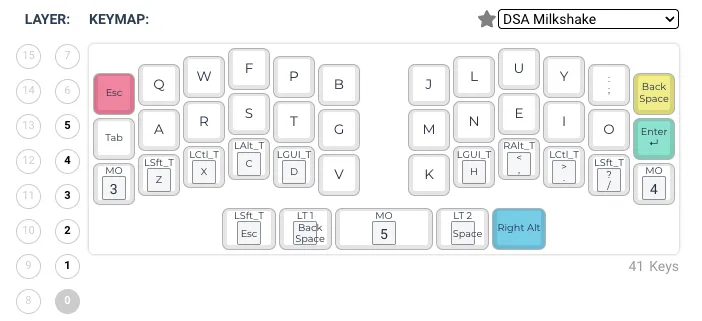
Base layer: Colemak Mod-DH on Reviung41
The base layer is Colemak Mod-DH reduced to the Reviung41 matrix. Letters live where my fingers already expect them from Ferris and Dactyl. I refuse to keep a second alphabet in my head just because the PCB changed.
Edge keys are ordinary and useful:
- Esc and Tab on the left
- Backspace and Enter on the right
The interesting part is the bottom row. Instead of classic home-row mods on A R S T, I keep modifiers on the bottom row as tap-hold keys:
Left bottom: Z = Shift · X = Ctrl · C = Alt · D = Gui (Cmd)
Right bottom: H = Gui · , = Alt · . = Ctrl · / = Shift
Tap types the letter or punctuation. Hold sends the modifier. Pinkies hold MOUSE (left) and FUNC (right).
This is the same mental model as my Ferris layout, stretched onto a few more physical keys. Consistency beats cleverness.
Navigation layer
Hold the left inner thumb (Backspace) and you are on NAV.
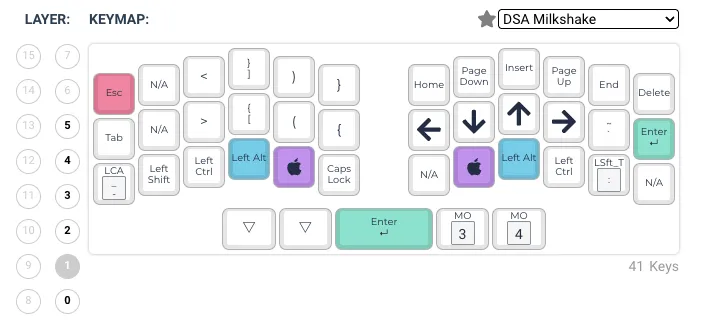
On the right hand, arrows sit on the home row: left, down, up, right under N E I O territory. Above them: Home, Page Down, Insert, Page Up, End. Delete sits where Backspace lives on the base layer.
That means I can edit text without leaving the home position. Jump to end of line, page through a file, nudge the cursor — all with the left thumb held and the right hand still on letters.
The left half of NAV carries brackets and parentheses in mirrored pairs. Writing code on a compact board without a dedicated []{}() row is painful unless those symbols live somewhere smart. For me, NAV is that place.
I also keep modifiers available on both sides while NAV is active, so Shift+arrow selections stay natural.
Numbers and symbols layer
Hold Space with the right thumb and you get NUM.
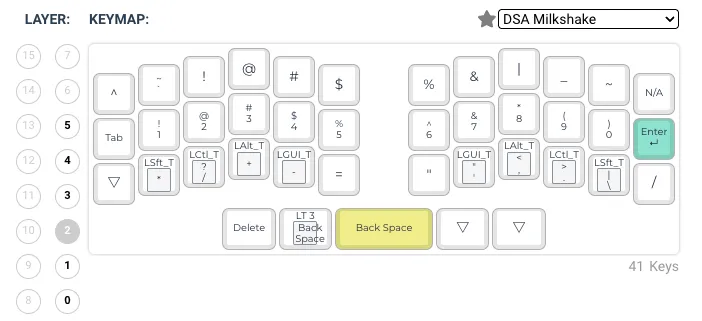
Numbers sit on the home row: 1 through 0. No reaching for a distant number row. Top row is the noisy symbols I need while coding. Bottom row carries operators (* / + - =) with the same tap-hold mod idea as the base layer.
A simple test I like — same idea as in the Ferris layout post:
To type 1+1, hold Space and hit the home-row keys for 1, +, 1. Your hands barely move.
After a few days this stops feeling like a trick and starts feeling like the normal way to enter numbers on a small board.
Mouse and function layers
I do not live on these layers, but I need them enough to keep them one pinky away.
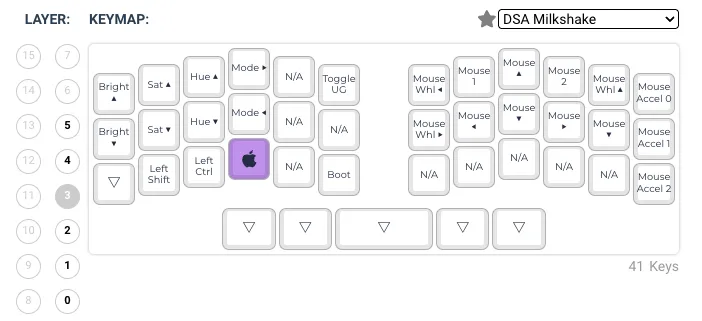
MOUSE (hold left pinky): mouse movement, clicks, and wheel on the right half. RGB underglow controls on the left. Bootloader key is here too, intentionally slightly out of the way so I do not hit it while typing.
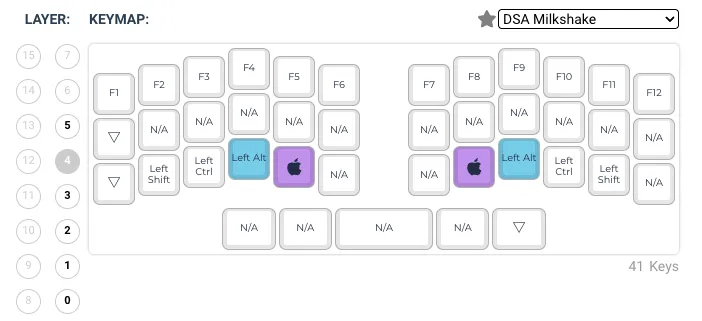
FUNC (hold right pinky): F1 through F12 across the top. Rare, boring, necessary. Brightness keys, IDE shortcuts, the occasional “why is this dialog asking for F2” moment — they all live here.
If you are coming from a full keyboard, these two layers feel like the last safety net. After a month, you stop thinking about them until you need them.
EXTRA layer: Alfred apps and Magnet windows
This is the feature that made the middle thumb worth keeping empty of characters.
Hold the middle thumb and the board splits by hand: left side is apps, right side is window placement. Left hand chooses the app. Right hand places the window. That is the whole EXTRA layer in one sentence.
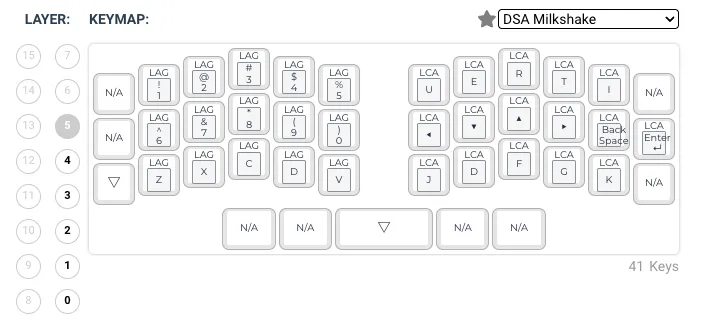
In the firmware this layer is nothing but chords. LAG on the left means Cmd+Option, LCA on the right means Ctrl+Option. The keyboard has no idea what an app or a window is.
The meaning is added on the Mac side:
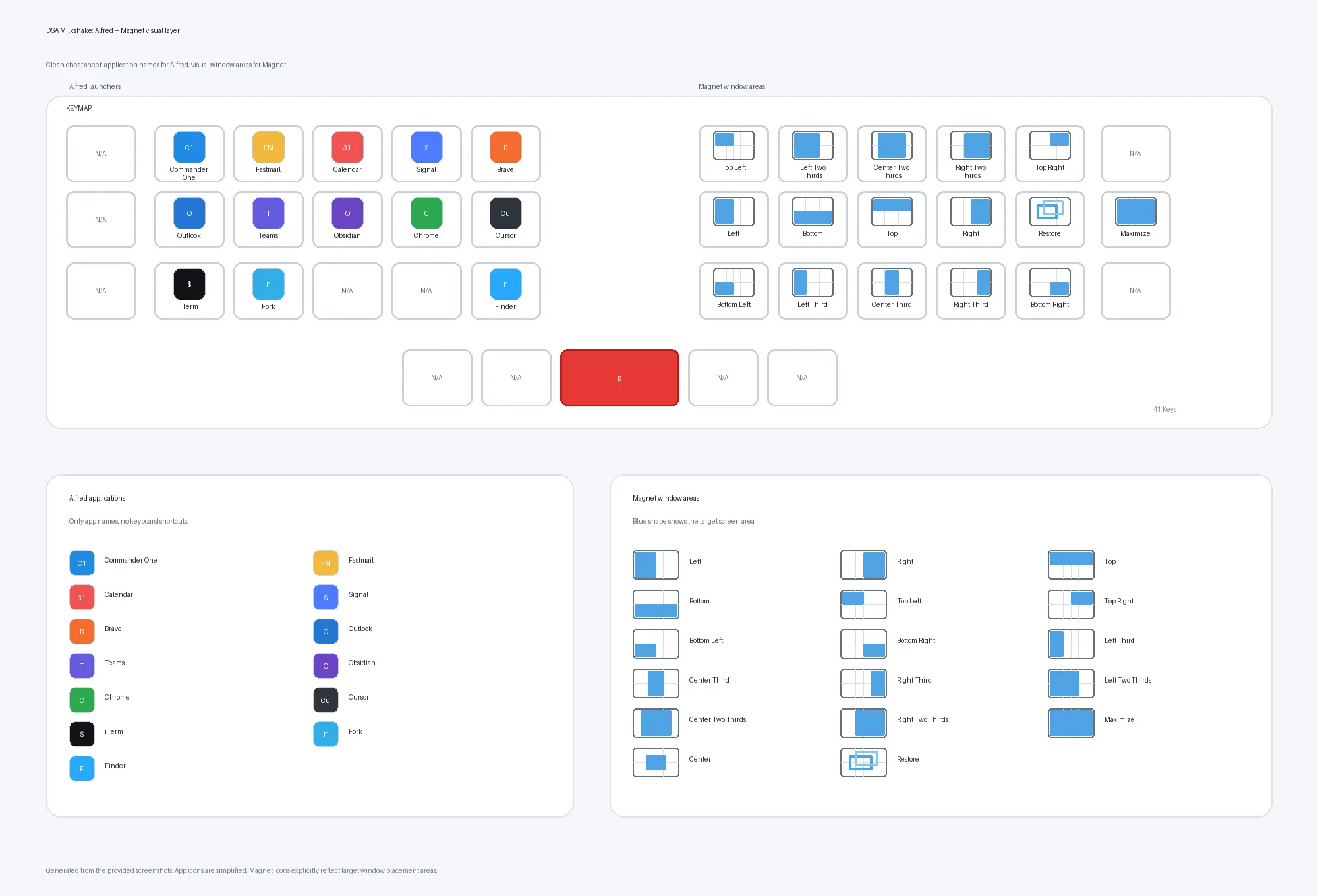
Same layer, this time with what each chord actually does: apps on the left through Alfred, window snaps on the right through Magnet.
Alfred on the left
Hold the middle thumb. The left side of the board sends Cmd+Option chords. An Alfred workflow listens for those chords and toggles the matching app into focus.
My current map:
| Hold middle + | Opens / focuses |
|---|---|
| 1 | Commander One |
| 2 | Fastmail |
| 3 | Calendar |
| 4 | Signal |
| 5 | Brave |
| 6 | Outlook |
| 7 | Teams |
| 8 | Obsidian |
| 9 | Chrome |
| 0 | Cursor |
| Z | iTerm |
| X | Fork |
| V | Finder |
On the board that is three rows left to right: 1–5 on top (quick personal tools), 6–0 in the middle for working (Outlook, Teams, Obsidian, Chrome, Cursor), and Z / X / V on the bottom (terminal, git, Finder). Cmd+Option+C and Cmd+Option+D exist in the firmware but are not bound in Alfred yet.
Alfred is set to toggle. If the app is already frontmost, the same chord can tuck it away. That matters more than it sounds. App switching becomes a rhythm with one thumb held, not a search dialog every time.
The keyboard itself only sends Cmd+Option+key. Alfred is how I turn those chords into apps. You could use another launcher, Shortcuts, or even Karabiner — the important part is a stable chord per app. I still prefer Alfred because it is super fast, super useful, and it simply allows for many more things than Spotlight. Fixed hotkeys, workflows, toggles, clipboard tools, custom actions — Spotlight is fine for “what was that PDF called”, but Alfred is what I want when I need Cursor now, and for everything else I wire into daily muscle memory.
Magnet on the right
Same middle thumb. Right hand. Now the chords are Ctrl+Option, which Magnet uses for window snaps.
My Magnet bindings on this layer:
| Hold middle + | Magnet action |
|---|---|
| ← | Left half of screen |
| → | Right half of screen |
| ↑ | Top half |
| ↓ | Bottom half |
| U | Top-left corner |
| I | Top-right corner |
| J | Bottom-left corner |
| K | Bottom-right corner |
| E | Left two-thirds |
| T | Right two-thirds |
| D | Left third |
| G | Center third |
| F | Maximize |
Arrows for halves are the ones I use constantly. Corners for quick quarter layouts. Thirds and two-thirds when I am comparing three things or giving the editor more width than a plain 50/50 split.
Magnet is what I use, but the keyboard only speaks Ctrl+Option. Rectangle and other snap tools can listen for the same shortcuts. Without some window manager on the Mac side, the right half of EXTRA is just unused chords. With Magnet in place, window choreography stops needing the mouse for the boring half of desk work.
A few Ctrl+Option chords exist in the keymap (R, Backspace, Enter) that I do not currently use in Magnet. Magnet also has center, right-third, and next/previous monitor shortcuts that are not on this layer. I am fine with that. The layer covers the snaps I actually hit during work. The rest can stay in Magnet’s menu until they earn a key.
I tried denser “one Hyper key for everything” setups before. They collide with macOS, with apps, and with my own memory after a long day. Split responsibility — apps on the left, windows on the right — is easier to keep straight. That is why EXTRA stays two-handed instead of one overloaded modifier soup.
One workflow: open, then place
This is how the middle key feels in real work, not in a diagram.
Example: I want Cursor on the left half and Chrome on the right.
- Hold middle +
0→ Cursor - Hold middle +
←→ left half - Hold middle +
9→ Chrome - Hold middle +
→→ right half
Four chords. Hands never leave the board. No Mission Control archaeology.
Same pattern for Outlook + Teams during a meeting day, or Obsidian + Brave when I am writing. Once the apps have fixed seats on the left side of EXTRA, the right side becomes pure geometry.
Learning curve vs Ferris Sweep
Coming from a 34-key Ferris Sweep, the letters transferred almost immediately. Colemak Mod-DH is Colemak Mod-DH. That was the point of keeping one alphabet across keyboards.
What changed:
- More thumb keys. Reviung41 gives you a wider center cluster. Space and Backspace still feel familiar, but the middle EXTRA key is new muscle.
- Nav and Num access. Same idea as Ferris (hold a thumb for a layer), slightly different physical targets.
- EXTRA. This did not exist in the same form on my Ferris daily layout. Alfred + Magnet on one momentary layer is the Reviung41-specific habit.
The first week I still reached for the mouse to move windows. The second week I caught myself holding the middle key without thinking. That is usually my favorite moment with a new layout: it looks unusual, then suddenly your fingers stop arguing with it.
The middle key is hold-only: MO(_EXTRA), no tap character. That feels wrong the first day and correct forever after. A letter or Space on that key would fight the layer every time you meant to open an app or snap a window.
If you already use Colemak on another board, Reviung41 layout learning is mostly thumbs and EXTRA — not starting from zero. The idea also travels. On another QMK board you can put a momentary EXTRA layer on a thumb key, send Cmd+Option chords on one side and Ctrl+Option on the other, and keep the same Alfred + Magnet habits. The spirit copies better than pasting my exact matrix into a different PCB.
Who this layout is for
This Reviung41 layout is a good fit if:
- you type on a Mac
- you already like (or are willing to try) Colemak Mod-DH
- you use Alfred, or you are fine binding the same Cmd+Option chords another way
- you use Magnet, Rectangle, or any window manager that speaks Ctrl+Option snaps
- you want app switching and window placement without leaving the home position
It is a weaker fit if you want every Magnet action and every app on day one, or if you refuse layers on principle. A 41-key board without layers is a toy. With layers, it is a tool.
I still believe a true split can be more ergonomic for long sessions. Reviung41 wins on “one piece, backpack, office desk, start typing”. The layout has to respect that job.
Firmware notes
The layout lives in QMK as six named layers: _BASE, _NAV, _NUM, _MOUSE, _FUNC, _EXTRA. Mousekeys are enabled. There is no dedicated media layer; volume and playback are not part of this map yet.
I share this layout as keymp.json, a QMK configuration file you can import into QMK Configurator:
I change one thing at a time. If a chord feels wrong after a real work week, it gets moved. If it only feels wrong in my imagination, it stays.
That is the whole method: ship a layout you can work on, then let daily friction edit it.
Thanks for reading!
If you try a similar Alfred + Magnet split on Reviung41 (or another compact board), I would like to hear what you put on the left and right. Those choices say more about how someone works than any pretty keymap screenshot.
Bartosz